This post is for those folks who are planning on attending the 'Blogging 101' session on Thursday, August 28th, 8:30 to 1:30 in Penticton. Please fill in the survey below in order to give me an idea of where participants are at in terms of their tech background. Thanks!
Monday, August 25, 2008


Sunday, August 24, 2008
Setting Up Your Blog
Ok, so now you know how to find blogs, how to set up Google Reader, and how to subscribe to blogs. Now it is time to create your own blog!
Google's Blogger
I've chosen Blogger (aka Blogspot) as the blog platform to host your blog. There are other free blog platforms to choose from such as WordPress, Edublogs, TypePad and others. I have chosen Blogger for this session because it is very easy to set up, Google is constantly improving it, and it means that you only have to sign up with one company to get both your blog platform and your RSS reader.
Here We Go
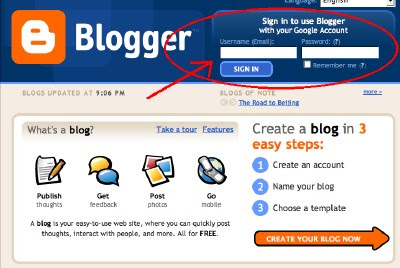
Go to Blogger and, since you've already set up your Google account, fill in the sign in information, then click the 'Sign In' button.
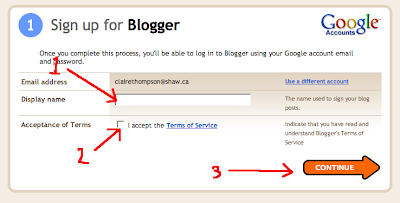
Fill in your 'Display Name', click on the 'Acceptance of Terms' box, then click 'Continue'.
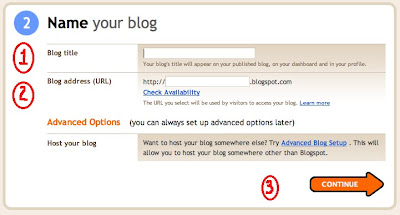
Now you need to
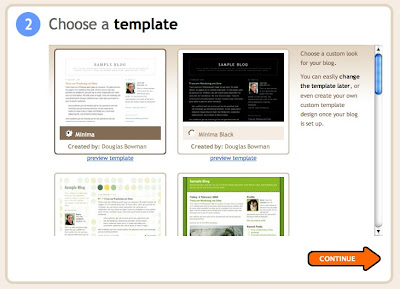
 Now you can choose your blog template or look. There are a number to choose from and you can change them around at any time. Then click 'Continue'.
Now you'll come to a screen that says "Your blog has been created!" Click on the 'Start Blogging' arrow.
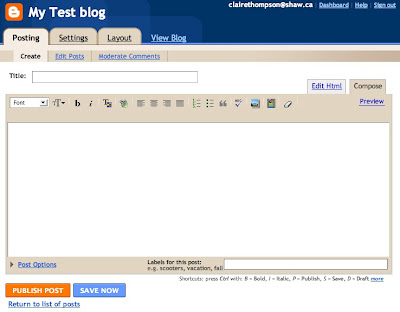
The screen will now look like the shot below.
Advertize!
You now have blog! Never mind that there's nothing in it yet. Let the rest of us know what your blog is called and the address. You can do this by including it in the comment section of this post.
How To Comment
Comments are the raison d'etre for many bloggers. You post something, then you wait expectantly for the first response in your comment section. Figuring out how to comment can be tricky at first, because different blog platforms and templates are set up a little differently. Check out this post on how to comment on this blog.
Subscribe to Your Own Blog
As I mentioned previously, blog readers don't always show all the images or other media in a blog post. By subscribing to your own blog you are able to see how those subscribing to it may be seeing it. After reading one of your own posts in Google Reader you may see the need to go back and edit your post to point out to readers that you've got an image or video they may want to view.
What Next?
Before you actually start posting to your blog, you'll need to deal with the settings and layout. I'll discuss how to do that in the next post.
This is post #6 in the 'blogging 101' series.
Google's Blogger
I've chosen Blogger (aka Blogspot) as the blog platform to host your blog. There are other free blog platforms to choose from such as WordPress, Edublogs, TypePad and others. I have chosen Blogger for this session because it is very easy to set up, Google is constantly improving it, and it means that you only have to sign up with one company to get both your blog platform and your RSS reader.

Here We Go
Go to Blogger and, since you've already set up your Google account, fill in the sign in information, then click the 'Sign In' button.

Fill in your 'Display Name', click on the 'Acceptance of Terms' box, then click 'Continue'.

Now you need to
- Decide on a name for your blog. You want to give some thought to your name. The first blog that I set up I called 'Claire's World'--kinda had a Chevy Chase cachet to it (I later ditched it). After choosing the title for this blog, Tech Pro-D Tools, I had a commenter write "I do wonder about the title; not sure what Pro-D means." Hmm. My main blog is called Clarify Me, which I'm content with for now. I'm still waiting for the Rheostatic fans to find me...
- Choose an URL (web address). Give this some thought too. I suggest you choose something relatively short and meaningful. Enter your choice, then click 'Check Availability'.
- Select 'Continue'
 Now you can choose your blog template or look. There are a number to choose from and you can change them around at any time. Then click 'Continue'.
Now you'll come to a screen that says "Your blog has been created!" Click on the 'Start Blogging' arrow.
The screen will now look like the shot below.

Advertize!
You now have blog! Never mind that there's nothing in it yet. Let the rest of us know what your blog is called and the address. You can do this by including it in the comment section of this post.
How To Comment
Comments are the raison d'etre for many bloggers. You post something, then you wait expectantly for the first response in your comment section. Figuring out how to comment can be tricky at first, because different blog platforms and templates are set up a little differently. Check out this post on how to comment on this blog.
Subscribe to Your Own Blog
As I mentioned previously, blog readers don't always show all the images or other media in a blog post. By subscribing to your own blog you are able to see how those subscribing to it may be seeing it. After reading one of your own posts in Google Reader you may see the need to go back and edit your post to point out to readers that you've got an image or video they may want to view.
What Next?
Before you actually start posting to your blog, you'll need to deal with the settings and layout. I'll discuss how to do that in the next post.
This is post #6 in the 'blogging 101' series.
Sunday, August 17, 2008
Getting Going With Google Reader
Hopefully you're on your way to being convinced that RSS is a great way to keep up with posts on the web. This post is going to step you through signing up for a Google Reader account and subscribing to blogs. Google Reader is a feed aggregator--it brings together the web content that you subscribe to in one place. This is where you'll see if your favourite blogs have any new posts for you to read.
Signing up!
The following video describes how to sign up for Google Reader:
And here's a step-by-step non-video for those of us who learn better this way ;-)
Now that you've signed up for Google Reader you need to find out how to start subscribing to all those great blogs you're finding. The following video explains how to do this.
In addition to the method that Liz Davis describes in the above video, there are a couple of other options.
'Subscribe to this blog' button
Some blogs will have a 'Subscribe to this Blog' area which may look like this: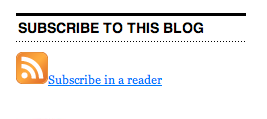

Clicking on the orange RSS icon will get you to a page like this: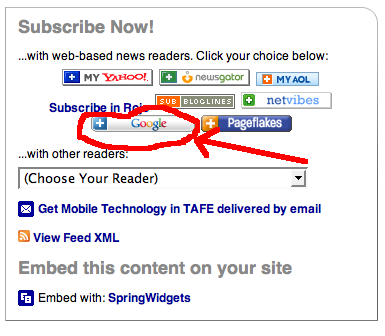
Now you should click on the Google button that I've circled in the image above. It will take you to your Google Reader page where it has added the blog.
Adding the blog address directly
Bring up the blog in your browser window, then highlight the web address and copy it (Ctrl c). Now go to Google Reader and click on 'Add Subscription'.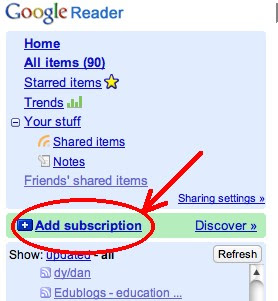
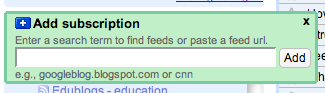
The 'Add subscription' box will pop up and you can paste the blog address there (Ctrl v).
An Important Note
When you view blog posts in Google Reader, it may not always show the images or videos. It also will not usually show the comments that people have left. So if a post isn't making sense (images or video missing) or if you'd like to see what people said about the post, you can click on the title of the blog post to view that post in its home on the web.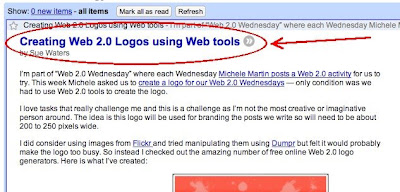
Go Forth and Subscribe!
Now, go back to some of those great blogs you found and start adding them to Google Reader!
For the 'Gifted' Ones in the Crowd...
If you've gotten this far and it isn't even time for the first break yet, you might consider watching this video on how to manage your subscriptions in Google Reader. If you don't have time right now, check it out later when your not so busy (summer '09?!)

Next up, we'll start setting up our own blogs!
This is post #5 in the 'blogging 101' series.
Signing up!
The following video describes how to sign up for Google Reader:
And here's a step-by-step non-video for those of us who learn better this way ;-)
- Go to http://www.google.com/reader
- If you already have a Google account, then sign in. If you do not have a Google account click 'create account'.

- Fill in the required information in the 'Create an Account' Page.

Now that you've signed up for Google Reader you need to find out how to start subscribing to all those great blogs you're finding. The following video explains how to do this.
In addition to the method that Liz Davis describes in the above video, there are a couple of other options.
'Subscribe to this blog' button
Some blogs will have a 'Subscribe to this Blog' area which may look like this:

Clicking on the orange RSS icon will get you to a page like this:

Now you should click on the Google button that I've circled in the image above. It will take you to your Google Reader page where it has added the blog.
Adding the blog address directly
Bring up the blog in your browser window, then highlight the web address and copy it (Ctrl c). Now go to Google Reader and click on 'Add Subscription'.

The 'Add subscription' box will pop up and you can paste the blog address there (Ctrl v).

An Important Note
When you view blog posts in Google Reader, it may not always show the images or videos. It also will not usually show the comments that people have left. So if a post isn't making sense (images or video missing) or if you'd like to see what people said about the post, you can click on the title of the blog post to view that post in its home on the web.

Go Forth and Subscribe!
Now, go back to some of those great blogs you found and start adding them to Google Reader!
For the 'Gifted' Ones in the Crowd...
If you've gotten this far and it isn't even time for the first break yet, you might consider watching this video on how to manage your subscriptions in Google Reader. If you don't have time right now, check it out later when your not so busy (summer '09?!)
Next up, we'll start setting up our own blogs!
This is post #5 in the 'blogging 101' series.
Wednesday, August 13, 2008
RSS Means What?!
Really Simple Syndication. That's what RSS means. And this is important why?
Consider this scenario. You've found twenty blogs that you just love. Tomorrow you visit all 20 of them to see if there are any new posts. Yay! Nine of the blogs have some great new stuff (of course this means 11 had no new posts). The next day you visit all twenty blogs--more new posts!! You do this every day for a week. It is exhausting. If only you could be alerted when the blog authors post new stuff, instead of visiting all twenty blogs each day. This is where RSS comes in. Check out the video RSS In Plain English from the Common Craft Show below for an even better explanation. (The commonly used icon for RSS is shown above.)
Getting RSS to Work For You
Before you can use the power of RSS, you need to have a feed reader. I recommend Google Reader for two reasons; 1) it is pretty easy to use, and 2) I'm going to get you to set up your blog in Google, so why not sign up once (for reader and blog) instead of twice with two different companies? More on Google Reader in this post.
**Note: I do not receive any goodies or lucre from Google; I just like their stuff. If they'd like to send me goodies or lucre I would not be averse to taking it though ;-)**
This is post #4 in the 'blogging 101' series.

Consider this scenario. You've found twenty blogs that you just love. Tomorrow you visit all 20 of them to see if there are any new posts. Yay! Nine of the blogs have some great new stuff (of course this means 11 had no new posts). The next day you visit all twenty blogs--more new posts!! You do this every day for a week. It is exhausting. If only you could be alerted when the blog authors post new stuff, instead of visiting all twenty blogs each day. This is where RSS comes in. Check out the video RSS In Plain English from the Common Craft Show below for an even better explanation. (The commonly used icon for RSS is shown above.)
Getting RSS to Work For You
Before you can use the power of RSS, you need to have a feed reader. I recommend Google Reader for two reasons; 1) it is pretty easy to use, and 2) I'm going to get you to set up your blog in Google, so why not sign up once (for reader and blog) instead of twice with two different companies? More on Google Reader in this post.
**Note: I do not receive any goodies or lucre from Google; I just like their stuff. If they'd like to send me goodies or lucre I would not be averse to taking it though ;-)**
This is post #4 in the 'blogging 101' series.
The Great Blog Search
Before we focus on creating your own blog, it would be helpful to check out blogs on topics that interest you. So how do you find blogs of interest? Here are a couple of different methods that I've found useful.
Do A Blog Search
If you've just found a great blog, for Pete's sake, bookmark it! Better yet, tell us about it by leaving a comment on this post. Tell us the name of the blog and blog address and maybe a brief description (eg cool math blog with lots of lesson ideas). To figure out how to comment, go here. I'll explain in the next few posts how to keep track of your favourite blogs.
Now, on to the next post!
This is post #3 in the 'blogging 101' series.
Do A Blog Search
- Google Blog Search is similar to a regular Google search, but it just looks for blogs with the search terms you choose.
- Technorati also searches blogs. Just type in your search terms in the search bar in the banner.
- Bloglines. As with Technorati, type in your search terms in the search bar in the banner.

- If you've found a blog you really like, the blog author will often have a list of blogs to which they subscribe in one of their sidebars. Checking these out is a good place to start as they come recommended! You can check out the blogs I subscribe to under Blogs I Read in the right sidebar. Most of the ones I've listed are edublogs; blogs written by public school or university educators.
- Sometimes you'll read a comment on a blog from someone whose ideas you find interesting. If they've linked their blog to their comment just click on their name or icon to go to their own blog.
If you've just found a great blog, for Pete's sake, bookmark it! Better yet, tell us about it by leaving a comment on this post. Tell us the name of the blog and blog address and maybe a brief description (eg cool math blog with lots of lesson ideas). To figure out how to comment, go here. I'll explain in the next few posts how to keep track of your favourite blogs.
Now, on to the next post!
This is post #3 in the 'blogging 101' series.
What Is A Blog?
Most people have heard of blogs, but to really explain what blogs are and how they work check out this short video, Blogs in Plain English from the folks at Creative Craft.
Then go to the next post.
This is post #2 in the 'blogging 101' series.
Then go to the next post.
This is post #2 in the 'blogging 101' series.
Blogging 101--Intro
Welcome to Blogging 101! This post and the ones that follow are part of a professional development session that I am doing for a group of teachers in my school district. The aim of the session it to introduce participants to blogs and illustrate how blogging can enhance on-going teacher professional development by facilitating communication and collaboration with teachers from around the world.
By the end of the session participants should be able to:
I hope that this series of posts will be of interest not just to people attending my session, but also to people starting out blogging and those who are looking for resources to help introduce blogging to their colleagues. Any comments or suggestions you have to improve the info here are welcome!
Now, onto the next post!
*This post, and the rest of this series will no doubt undergo some modifications prior to the Aug 28th blogging session as I tweak it.*
This is post #1 in the 'blogging 101' series.

By the end of the session participants should be able to:
- search for blogs of interest
- subscribe to blogs in a feed reader
- submit comments to a blog
- set up their own blog
- write their first blog post
I hope that this series of posts will be of interest not just to people attending my session, but also to people starting out blogging and those who are looking for resources to help introduce blogging to their colleagues. Any comments or suggestions you have to improve the info here are welcome!
Now, onto the next post!
*This post, and the rest of this series will no doubt undergo some modifications prior to the Aug 28th blogging session as I tweak it.*
This is post #1 in the 'blogging 101' series.
Subscribe to:
Posts (Atom)

 Posts
Posts

